Frequently Asked Question
I cannot View Graphs in G4K web interface
Last Updated 10 years ago
In Internet Options, Security tab – select Trusted Sites and set security to Low, apply. Press Custom level and enable
all activeX related settings:
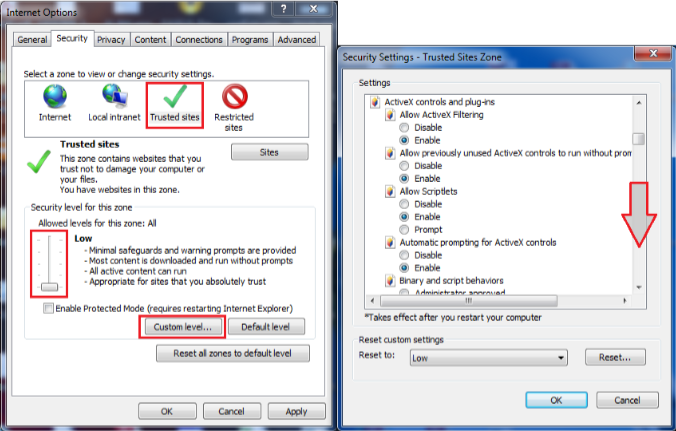
Press OK.
Back at the Security tab, press Sites and add the IP address of the G4 device to the list:
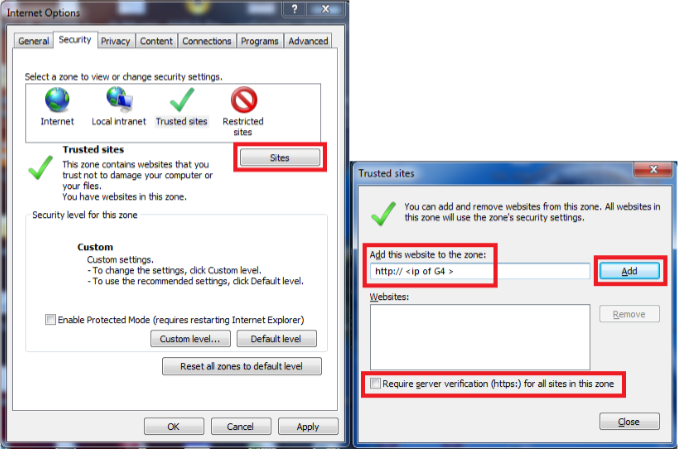
Download the activeX from HEREand install it. Re - login and press Allow at the security prompt:
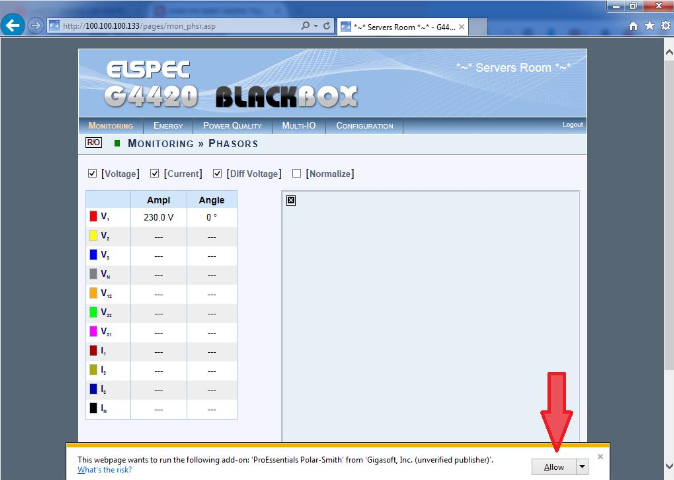
Enable Compatibility Mode/View (depends on Internet Explorer version):
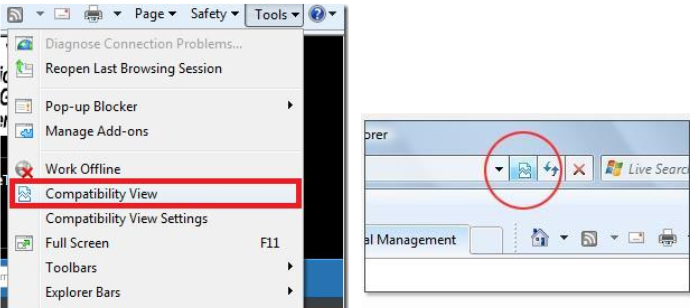
Re - login, and graphs should work:
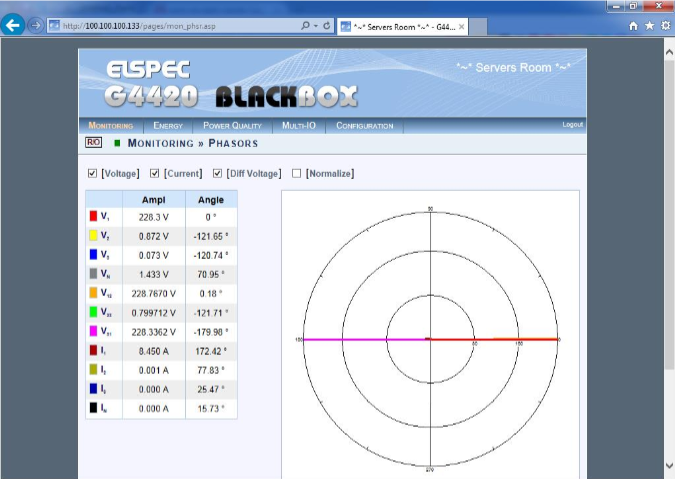
If graphs are still not showing, there could be a security software (antivirus,etc.) or a policy that is blocking unsigned activeX from running -consult your IT department.
all activeX related settings:
Press OK.
Back at the Security tab, press Sites and add the IP address of the G4 device to the list:
Download the activeX from HEREand install it. Re - login and press Allow at the security prompt:
Enable Compatibility Mode/View (depends on Internet Explorer version):
Re - login, and graphs should work:
If graphs are still not showing, there could be a security software (antivirus,etc.) or a policy that is blocking unsigned activeX from running -consult your IT department.